Guests & tracking
Every invite and every response, in one list — search, sort, export, and edit by hand when you need to.
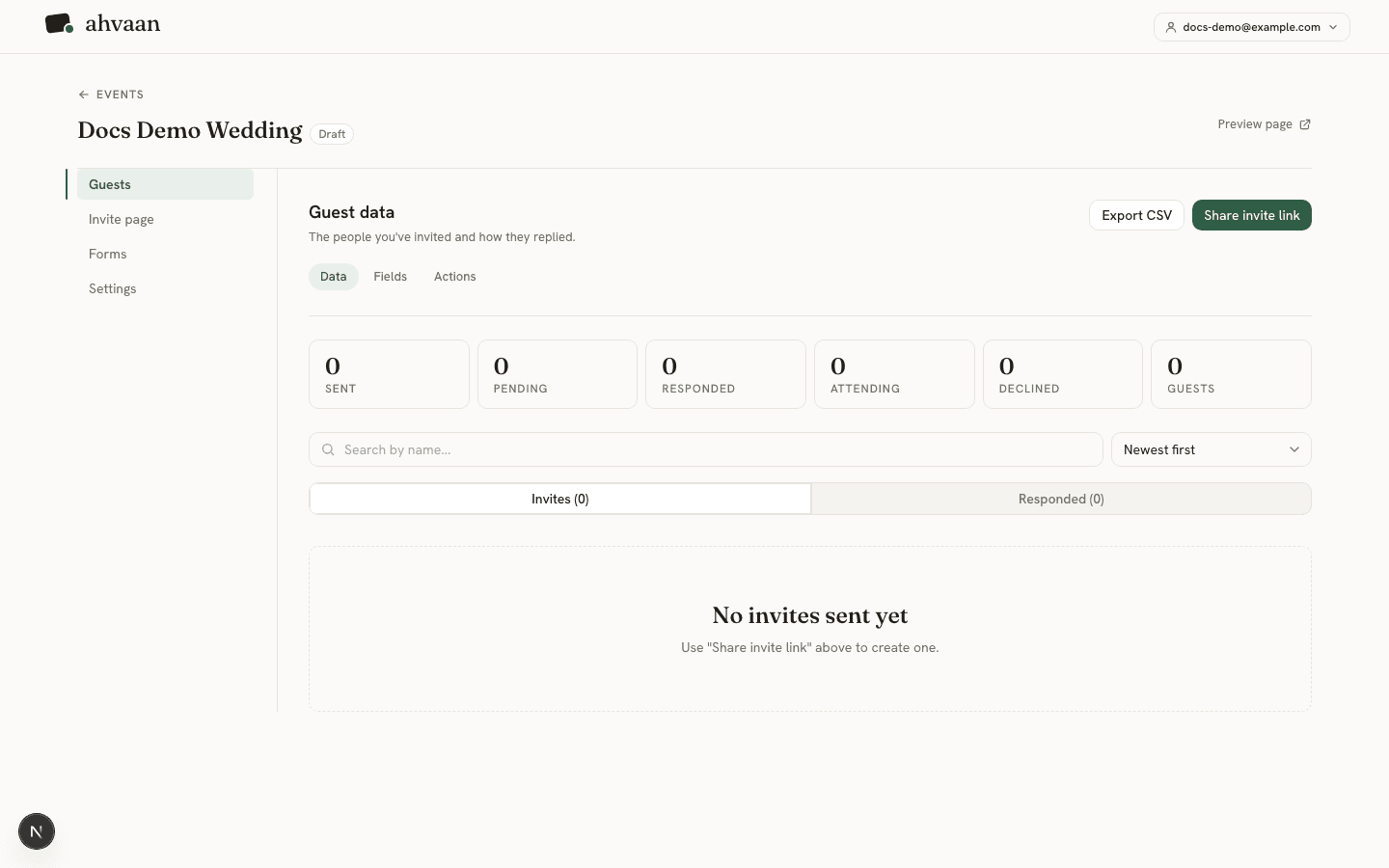
The Guests tab is where invites and responses live side by side. It splits into two tabs — Invites for people who haven’t responded yet, and Responded for people who have.
Stats at a glance
The tiles across the top always show Sent, Pending, and Responded counts — clicking a tile jumps straight to the matching tab and filter. If your RSVP form asks an attendance question, two more tiles appear: Attending and Declined, plus a Gueststile counting total headcount including plus-ones. If it doesn’t, those tiles are hidden rather than shown as a meaningless zero, and a short note explains why — see the RSVP form guide for how that attendance field is set up.
Search and sort
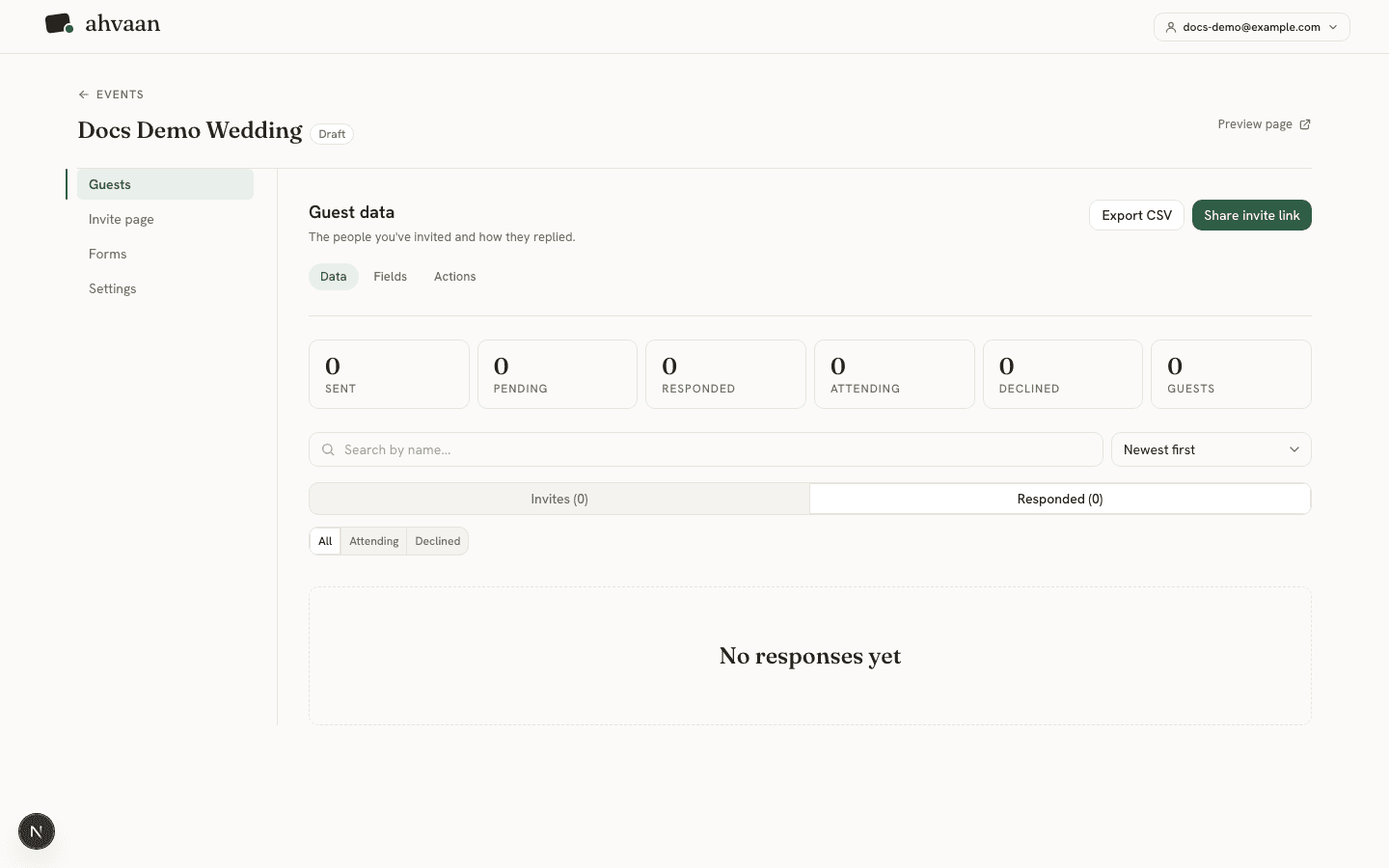
The search box matches a guest’s name on the Invites tab, and on the Responded tab it also matches any plus-one names attached to their RSVP — so searching a plus-one’s name finds the RSVP that includes them. Typing more than one word requires every word to appear somewhere in that combined name text, in any order. Sort by newest, oldest, or name (A–Z / Z–A) from the dropdown next to the search box.
Sharing an invite link
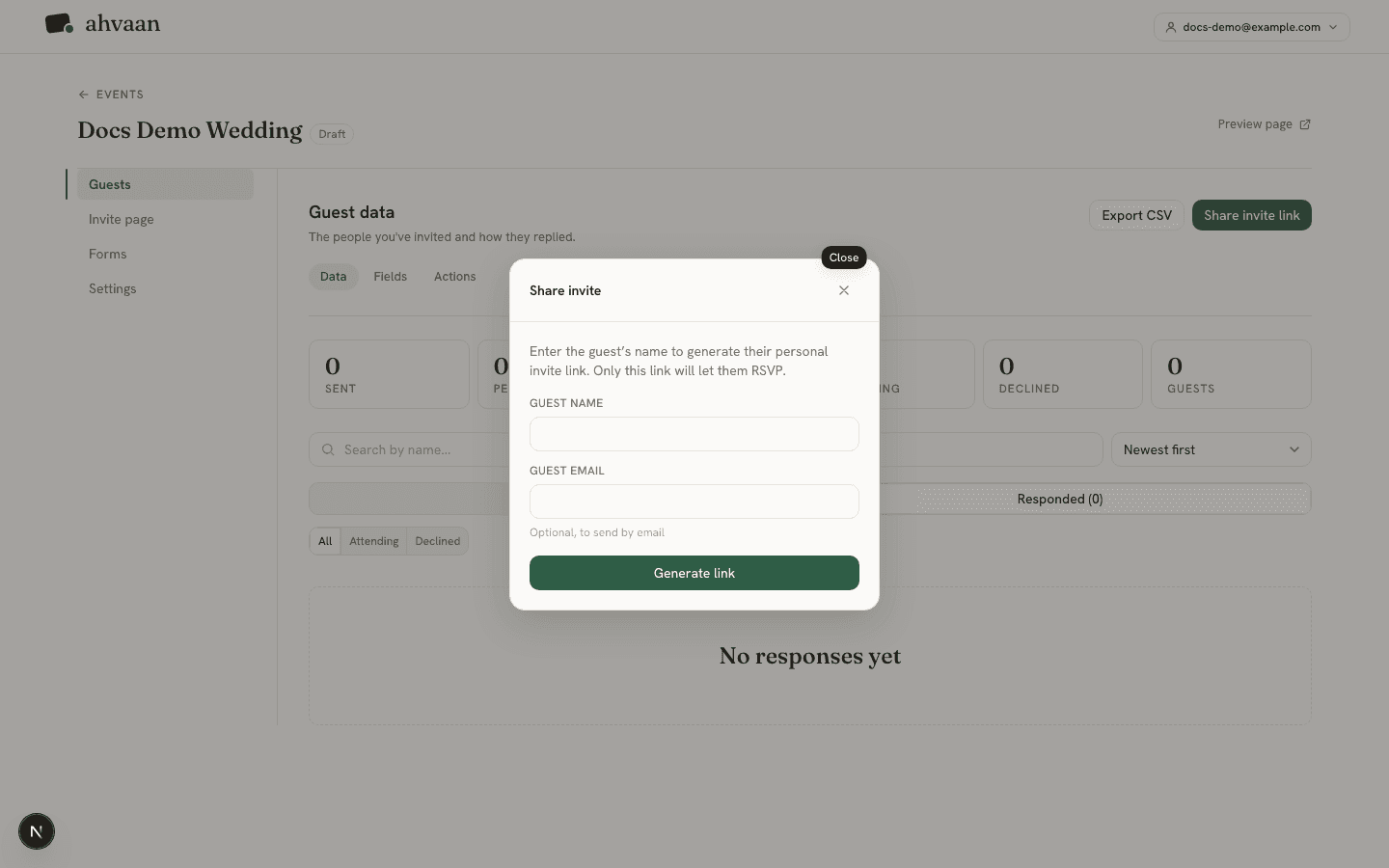
Share invite linkcreates one personal link per guest — only that link lets them RSVP. Once it’s generated you can copy the invite message (with a manual “tap to select” fallback if your browser blocks automatic clipboard access), or, on a device that supports it, share it straight to Messages, WhatsApp, or any other app through your device’s native share sheet.
Exporting to CSV
Export CSV downloads every invite and response currently loaded on the page — pending and responded, with each RSVP field as its own column — so you always have a spreadsheet copy of your guest list without waiting on a separate export step.
Editing an RSVP by hand
Open any responded guest’s card and choose Editto change their answers directly — useful for recording an RSVP that came in over the phone or by text on a guest’s behalf. The edit form mirrors your RSVP form’s exact fields, plus-ones included.
Good to know